Every retail business needs one thing to keep sales moving. One thing. Not the logo. Not the location. Not even the stock. It’s the POS system.
So, what exactly is a POS system? In simple terms, it’s the system that scans products, calculates totals, processes payments, prints receipts, and updates your inventory. All in one place. One sale, multiple tasks handled.
Here’s the good news: every retailer needs a POS system. The not-so-good news? Not all POS systems are built the same. The right one depends on your retail setup, how many stores you manage, and whether it integrates seamlessly with your existing ERP and payment terminals.
In this guide, we’ll break down how POS systems work, explore the different types, and walk you through eight things to look for before choosing a system that can grow with your business.
So what is a POS system?
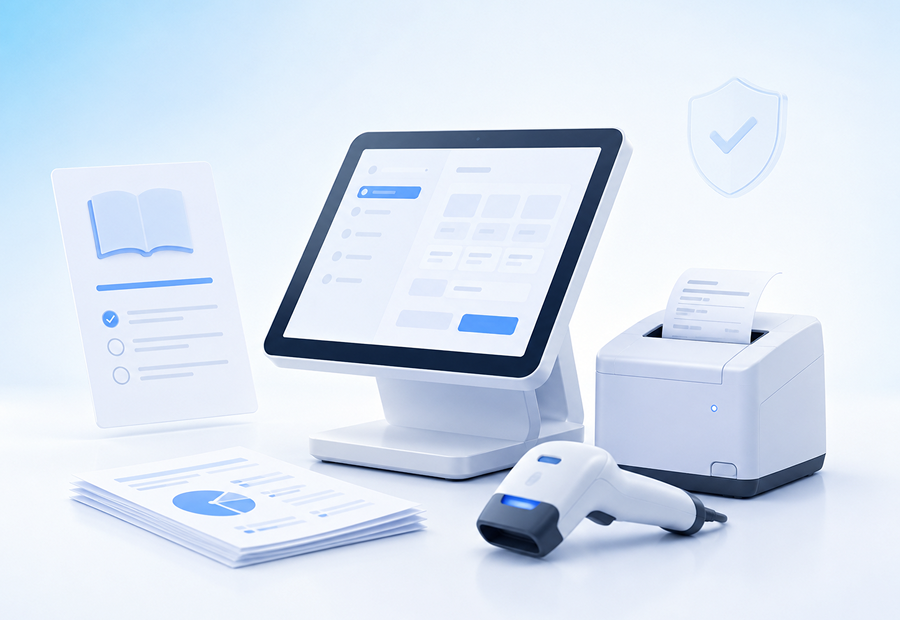
In simple terms, POS stands for point of sale. A POS system is the software and hardware empowers your retail business to complete sales at the counter. So it scans products, calculates totals, applies discounts, takes cash or card payments, issues the invoice or receipt, and updates inventory and sales records. All in real-time.
But in the world of retail, you might have come across similar terms that might be used interchangeably with a POS: such as a cashier system or till.
Let’s clear out the confusion.
A till is the cash drawer, where the money goes. A cashier system is what helps the cashier scan your purchases, calculate the total and take payment. Straightforward enough.
A modern POS system completes the sale, tracks what you sell, updates your inventory, records your revenue and gives you a clearer picture of how your business is doing. So while your cashier is busy serving customers, your POS system is busy keeping the bigger picture in check.
And when you’re running multiple stores, that’s a big deal. Knowing what sold at the counter is one thing. Knowing what’s happening across your entire retail business is another.
With that being said, let’s dig into the good stuff now.
How exactly does a POS system work?
Let’s visualize this for a minute. Imagine a customer picks up a couple of products from their favorite hypermarket. Instant coffee, a bar of chocolate and some juice. Then they head to the checkout. They pay with their VISA card and walk away to their car with a receipt in hand.
Sounds simple, right? An everyday encounter. But what you don’t see is what happens in the backend.
Here’s how a POS system makes it all work.
1. Scan the products
The cashier scans each product’s barcode, and the POS system pulls up the item and its price. No need to enter everything manually.
2. Calculate the total and update stock
The system then adds up the bill (the coffee, the bar, the juice), applies any discounts or offers if available on these items, and updates inventory as items are sold. Then, the system updates the stock count. There’s one less item of each on the shelf now.
3. Process the payment
Whether the customer paid by cash, card, or even both, The POS system records the payment and keeps track of the amount paid, so no transaction is ever lost in translation.
4. Issue the receipt and e-invoice
Once the payment goes through, the system prints a receipt and generates an e-invoice if needed. The sale is also added to your reports automatically.
And just like that, the sale is done! Your stock, payments, and sales records are all updated without your team lifting a finger.
How did POS systems evolve from cash registers to unified platforms?
POS systems weren’t as advanced as they are today. In the 1970s, a cash register had one job: calculate the bill and open the drawer. Stock was counted manually, and sales reports took time to put together. Can you imagine the level of manual work it would take?
Then, in 1974, the first retail product was scanned using a barcode at a supermarket in Ohio. By the 1990s, computerised POS systems were helping retailers track sales and inventory digitally, making store management definitely easier. But there was one setback: if a retail business or franchise had several stores, then each store often had its own system. And head office couldn’t see everything in real time. The result? Decentralization.
Today, cloud POS brings sales and inventory data from every store together in one place. Revest POS works this way: product data stays consistent across your stores, and you can see stock across your network in real time. A new store inherits its currency and tax rules from its legal entity, and each POS device is activated with a one-time code. If a customer asks for something that is out of stock, your team can source it from a nearby store.
The two things every POS system needs to get right
POS software: the brains behind every operation
The software is where most of the work happens. A complete POS software package handles payment processing, inventory management, employee access and roles, customer records and loyalty programmes, and sales reporting. You name it. It consolidates all the core functions a retail business needs to operate fully.
But the real value is in how these features work together. When a sale goes through, your stock should update automatically, your sales figures should reflect the transaction, and your reports should stay accurate. No duplicate data entry, no chasing numbers across different systems.
POS hardware: the tools that bring it all together
This is the equipment your team uses every day: a screen or tablet, card reader, cash drawer, receipt printer, and barcode scanner.
So for example, let’s suppose you own a clothing store and a customer walks into your store and asks if a shirt is available in a size medium and in black. An employee pulls up a handheld barcode scanner, scans the shirt’s tag, and checks if its in stock. That’s an exampe of POS hardware.
Who needs a POS system?
If you sell anything over a counter, you do. But what you need from it depends on what happens at your counter every day. So let’s start with yours. Which of these sounds like you?
You run a clothing or fashion store. A customer picks out a pair of shoes she loves, but your shelf has no pair in her size. A good retail POS lets your cashier check the other stores while she is still standing there, so the sale doesn’t walk out the door.
You run a café or restaurant. It’s lunch hour and the line reaches the door. What you need is speed: orders go through fast and payments don’t hold up the next customer.
You run a salon or a service business. Your customers come back, and they book packages. You need to know who they are and what they bought last time, so the next visit feels personal.
You run a pharmacy or a building materials store. You carry thousands of items, and some of them expire. You need accurate stock and batch and expiry tracking, so nothing sits on the shelf past its date.
And if you’re looking for a POS system for a retail store that will work across several locations, the checklist later in this guide is the part to read closely.
Types of POS systems
Most retailers pick a POS by price or by what the shop next door uses. But it’s better to start with where your sales happen. Here are the three types and who each one is for.
Mobile POS
A mobile POS is a phone or small tablet that your staff carry with them. They can take payment anywhere in the shop, so nobody has to walk to the counter. It works well when the queue gets long, at events, or at a pop-up stand.
Tablet POS
A tablet POS is a tablet that stays at the counter and works as your till. It replaces a full computer and cash register, so it takes up very little space. It suits a small shop with one or two counters.
Terminal-based POS
A terminal-based POS is the full set of till equipment: a screen, a barcode scanner and a cash drawer, all fixed at the counter. It’s what you see in a supermarket, with a till on every lane. It suits busy stores with many customers at the same time.
You don’t have to choose just one type, and the right choice depends on where you sell. A clothing store might use a full till at its main counter, and a tablet at a small stall it opens for a few weeks around Eid, where there is no room for a full till. So when you compare POS systems, check that they work on the device you need.
Traditional vs. cloud POS
Now that you know what a POS system is and the types you can choose from, let’s look at the bigger question: where should your POS live? What is the difference between a traditional POS and a cloud POS, and what would it look like in your business?
With a traditional POS, your data sits on a server inside your store. You buy that server, and you or your IT person keep it running. With a cloud POS, your data is stored online in one central place, and you usually pay a subscription. Either way, check what the price includes, because setup and support differ from one provider to another.
Now think about your own business. Say it’s Friday night and you’re at home. With a cloud POS, you can open your phone and see what each of your stores has sold, without calling anyone. Updates reach all your stores together, so you don’t wait for someone to install them one by one. And when you decide to open a new store, you usually add it to the system you already have, instead of setting up another server.
If you run one shop with stable internet, either option can work well for you. If you plan to open more stores, a cloud POS will usually be the easier one to grow with. For a closer comparison, read our guide on cloud vs. on-premise POS. [Link: cloud vs. on-premise article — to add once published]
Key benefits of a POS system for business growth
You’ve seen what a POS system is and how to choose one. So what will actually change in your business once you start using it? These four things usually come first:
- Fewer human errors. Prices, discounts and totals are calculated by the system, so your cashier doesn’t do the maths under pressure while a line builds up.
- Faster service. Scanning a barcode and taking payment takes seconds, which matters most on a busy Thursday evening before a weekend or the day before a holiday.
- More accurate reports. Your sales, margin and stock come from the same source, so month-end stops being a weekend of recounting.
- A seamless customer experience. When a customer comes back with a return, your cashier finds the original sale on the spot, and a customer profile. So say goodbye to searching through paper receipts again.
Think about your own week. Which of these would give you back the most time? For most retailers, it’s the month-end recount, and that’s usually the first place to look when you compare systems.
Is your POS system ready for ZATCA? Here’s what Saudi retailers need to know
If you sell in Saudi Arabia, your POS system isn’t just a cashier system anymore. It’s part of how you stay compliant with ZATCA. ZATCA e-invoicing comes in two phases, and it helps to understand each one.
- Phase 1 has been in force since 4 December 2021. It is about the invoice itself. You can no longer give your customer a handwritten receipt or a Word document. Instead, your POS system creates and stores an electronic invoice with a QR code on it. If you sell from a shop in Riyadh, Jeddah or anywhere else in the Kingdom, this already applies to you.
- Phase 2 is where things get a bit more serious. This is the integration phase, which means your POS now has to talk to ZATCA directly. Every time a customer buys something, your system sends that invoice to ZATCA’s platform, called FATOORA, and ZATCA stamps it as approved. Think of it this way: in Phase 1 you were simply storing a receipt. In Phase 2, you’re checking in with ZATCA on every sale.
So what does all this mean at your counter? The invoice and QR code should be created automatically the moment the cashier takes payment. Not later, not by your accountant. If your POS system can’t do this, your cashier is doing extra work on every sale.
When you compare POS software, ask each vendor three questions: How does your system create the ZATCA invoice? Does it send it to ZATCA automatically? And what happens if the internet goes down?
With Revest POS, two things happen automatically. When the cashier takes payment, the ZATCA e-invoice and the QR code are generated right there and then. And if the internet drops during the sale, the sale still goes through. When the connection comes back, the system sends the pending invoices to ZATCA on its own. Your cashier doesn’t have to do a thing.
Your own deadline depends on your wave, so check it on the official ZATCA website.
Connecting Your POS to an ERP
As a retail business with numerous stores or franchises, you probably use an ERP. Whether its SAP, Oracle, Odoo or Dynamics, your business heavily relies on its ERP.
Now imagine you adopt a POS but it doesn’t integrate with your ERP. Without that connection, someone at head office spends their week copying numbers between the two. A sale happens in Jeddah, your accountant in Riyadh doesn’t see it until the next day, and a price changes in the ERP but your tills still ring up the old one.With ERP POS integration, this all happens on its own. The sale updates your accounts and stock as it happens, and a price change in the ERP reaches every till automatically.
No more working in silos.
Most POS software comes with a few basic integrations.Revest, on the other hand has built a dedicated integration layer called Revest Hub. This means your POS plugs into the systems you already use on a daily basis, instead of asking you to change them. Revest Hub connects to the major ERPs retailers in Saudi Arabia work with, including SAP, Microsoft Dynamics 365 and Odoo. With SAP, the connection is live and two-way. A sale at the till appears in SAP as it happens, and changes made in SAP, like a new promotion or a price update, sync down to your tills automatically. Imagine a customer in your Jeddah store buys a jacket for 500 SAR. At the moment the cashier finishes the sale, that 500 SAR shows up in your SAP system too. Your head office in Riyadh can see it right then. Not tomorrow. Not after someone enters it manually. It’s just there.
When you compare systems, ask the supplier: does it have a real integration layer, which ERPs does it connect to, and is the connection live or in batches? Those three questions will tell you quickly whether a POS fits into your business, or whether it will force your business to fit around it. Read our guide on managing store networks and franchises
How to choose a POS system: 8-point checklist you can’t ignore
Choosing a POS system isn’t just about comparing features, prices, or ease of use. You need to know what you’ll pay, how easily your team can use it, and whether it will still work for you when your business grows. We’re talking scalability here.
Total cost
What to ask: What’s included in the price? Think licences, hardware, setup, support, and adding more stores or tills.
Why it matters: The monthly fee doesn’t tell you the whole story. Ask about extra costs now, so you’re not caught off guard later.
Ease of use and training
What to ask: How long does it take a new cashier to handle a sale, a return, or a split payment without help?
Why it matters: Retail teams change, and new staff need to get up to speed quickly. If the system is difficult to learn, it can slow everyone down.
Offline operation
What to ask: What happens if the internet goes down? Can staff keep processing sales, and what happens when the connection comes back?
Why it matters: Internet outages happen. Find out what your team can still do at the checkout and which tasks will have to wait.
Adding more stores
What to ask: What would it take to add a second or tenth store? Can you set it up yourself, or would you need a separate implementation?
Why it matters: You don’t want to replace your POS system just because your business has grown. Make sure it can handle more locations from the start.
ZATCA compliance
What to ask: Does the system generate compliant e-invoices at checkout? How does it handle ZATCA requirements?
Why it matters: Your team shouldn’t have to do extra work after every sale to keep invoices compliant. Check exactly what the system handles for you.
ERP and system integration
What to ask: Does it work with your existing ERP and payment terminals? Does data sync in real time or at set intervals?
Why it matters: If your systems don’t share data properly, you could end up with outdated stock figures, delayed sales reports, and extra manual work.
Security and access control
What to ask: Can you control who applies discounts, voids sales, and closes shifts?
Why it matters: Not every employee needs access to every function. Role-based permissions help you keep track of who can do what.
Support and onboarding
What to ask: Who helps you get set up, and who do you contact when something goes wrong? What are their support hours and available languages?
Why it matters: Getting started is one thing. Getting help when an issue comes up during a busy shift is another. Make sure you know what support you’ll actually get.
The right POS system should grow with your retail business
That’s where Revest takes a different approach. Revest goes beyond the checkout to connect every function of your retail operations; all in one platform.Learn more about Revest POS Its POS integrates with your existing ERP, e-commerce platforms, and payment systems. Revest also brings retail capabilities that help you manage customer loyalty, track sales targets, and monitor performance across stores and teams. Add to that offline selling and ZATCA e-invoicing, so your team can work from a more connected view of the business. One holistic retail management platform.
For retailers in Saudi Arabia, this means less time switching between disconnected systems and more visibility into what’s happening across the business. No more second guessing what’s happening across your stores. From the sales counter to customer retention and store performance – Revest covers it all.
Already have an ERP, multiple stores, or a loyalty programme to manage? You don’t necessarily need another standalone system. Talk to the Revest team to explore how Revest can connect your existing setup and support your next stage of growth.
Frequently Asked Questions
What does POS stand for?
POS stands for point of sale. It is the place and moment where the customer pays, and in practice it means the system that handles that payment and records it.
Does a POS system work without internet?
It depends on the system. A POS built for offline use keeps selling and issuing invoices when the connection drops and syncs later. Some actions still need a connection. In Revest POS, for example, redeeming vouchers and sales on account need to be online. Ask any vendor for the list of what works offline.
What affects the cost of a POS system?
The main factors are the number of stores and tills, the hardware you need, whether pricing is a subscription or a licence, the integrations you require, and the level of support and training. Ask for a quote that lists all of these, so you can compare like for like.
Can a POS system connect to an ERP like SAP?
Yes, if the system offers that integration. Ask which ERPs it supports, and whether the data flows both ways and in real time. A connection that runs once a day is not the same as a live one.
What does ZATCA phase 2 mean for my POS system?
Your e-invoicing solution has to connect to ZATCA’s FATOORA platform and issue invoices in the required format. Which wave you belong to is set by ZATCA, so check your notification on the official ZATCA website.
The best time to review your POS system is before the busiest season, not during it. If you would like to see how Revest POS handles your stores, your ERP and your ZATCA requirements, request a tailored demo for your retail business here.