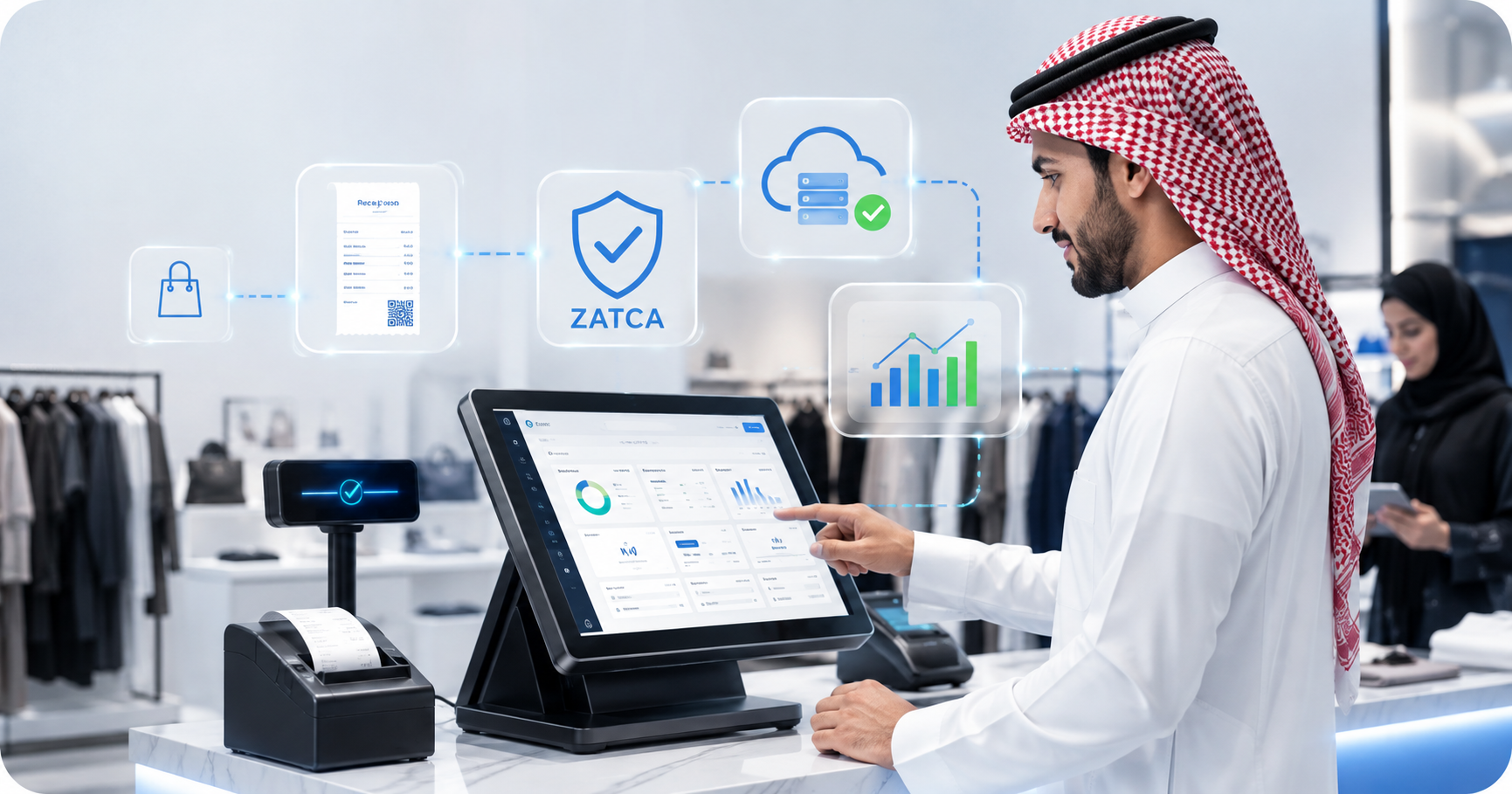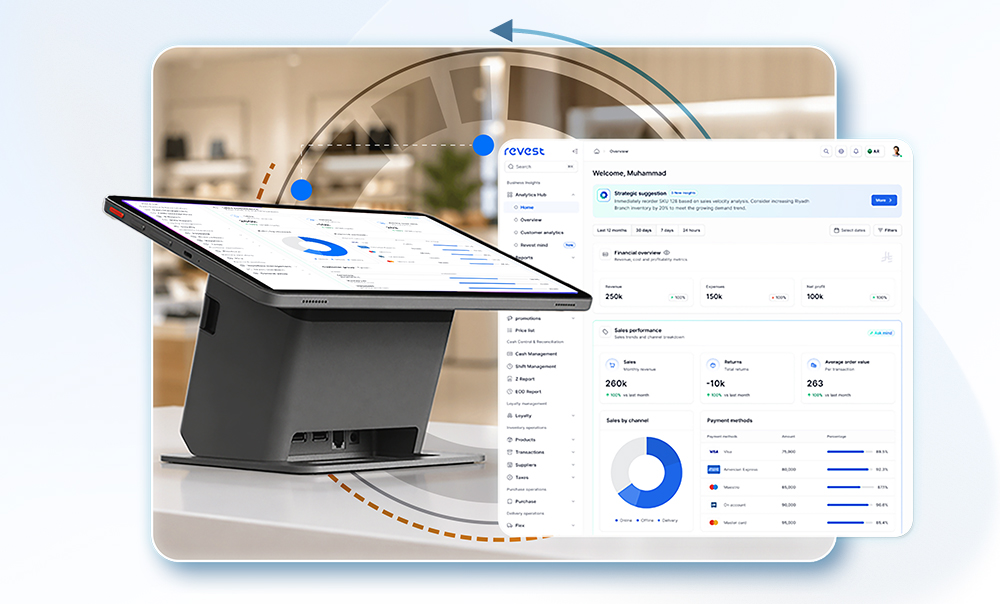
Your POS runs in the cloud, and that's a good thing. Sales, stock and customer data update centrally, and head office sees the network as it happens. But the internet connection in each store isn't always in your hands. A router fault or a busy mall network can take a store offline at the worst moment, and a cloud POS without offline mode stops with it.
That's why offline-ready point of sale software is your first line of defense. With a well-built offline mode, cashiers keep scanning, keep taking payments and keep issuing ZATCA-compliant e-invoices, and everything syncs back automatically when the connection returns. Most customers won't even notice.
In this guide, you'll see how offline point of sale software works behind the scenes, how e-invoicing stays compliant without internet, what keeps running and what waits, how sync keeps your data accurate, and what to put in place in every store.
How Offline Point of Sale Software Keeps Every Till Selling
When the connection is up, your POS talks directly to the central cloud server to record sales, check stock and update customer data in real time. When the connection drops, good software switches modes automatically, so a POS system without internet keeps selling and your cashier keeps their attention on the customer, not on the screen.
Two pieces of design make this possible. (New to the basics? Start with our guide to what a POS system is.)
A Local Database on Every Device
Each till or tablet keeps a small local copy of the data it needs to sell. That copy refreshes every time the device syncs, and it includes:
- The full product list and prices.
- Barcodes and active promotions.
- The tax data that applies to each item.
When the connection drops, the device reads from this local copy instead of the cloud. Scanning, adding items and applying stored promotions all carry on at normal speed. In Revest POS, a status light on the screen turns from green to red, so your team knows straight away that they're working offline.
Every Sale Saved Securely on the Device
Every invoice created during an outage is saved securely on the device, with the items sold, the tax values and the payment method. Those records wait in a queue until the connection returns, then upload in the order they were created.
Stay ZATCA-Compliant Even Without Internet
For retailers in Saudi Arabia, the big question is e-invoicing. How can a till with no connection still issue a simplified tax invoice with a valid QR code?
The answer lies in how your point of sale software is set up before any outage happens. In a compliant system, each device holds its cryptographic keys in advance. In Revest, that's a PEM key generated in the Back Office from the terminal's ZATCA certificates. With that key in place, the offline POS system can:
- Generate the e-invoice locally on the device.
- Create the QR code without contacting any external server.
- Print the invoice for the customer with all the required details.
- Send the invoice to ZATCA once the connection is back. Revest's ZATCA e-invoicing activation guide notes that offline invoices are sent within 24 hours of reconnecting.
Unlike standalone offline invoice software, the invoice is created inside your POS with the sale, so there's nothing to re-enter later. A network outage doesn't have to become a compliance problem. You keep selling, and your invoices stay in line with ZATCA's e-invoicing requirements.
What Your Point of Sale Software Can Do Offline, and What Waits
Knowing the limits of offline mode matters as much as knowing its strengths. When store teams know what to expect, they set the right expectations with customers and only make promises they can keep.
Here's what your team can keep doing on an offline POS, with no connection at all:
- Scanning barcodes and building the customer's basket.
- Applying promotions and discounts that are already stored on the device.
- Taking cash, and card payments on terminals that support offline use (such as Neoleap) or run on their own mobile connection.
- Issuing and printing ZATCA-compliant e-invoices.
- Registering new customers and pulling basic sales reports.
And here's what waits until the store is back online, because it needs live data from other stores, the central warehouse or an approver:
- Checking stock levels in other stores or the central warehouse.
- Creating stock transfer requests between stores.
- Tasks that need an approval from head office, such as exceptional discounts.
- Updating loyalty balances across the network in real time.
For the full list in Revest, see our connectivity and sync guide.
Back Online: Sync That Keeps Stock and Sales Accurate
Working offline is only half the job. The other half is what happens when the connection returns, because a weak sync process leaves you with stock errors and accounts that don't match. Reliable point of sale software follows a clear sequence:
1. It detects the connection: the system checks the network regularly, and once it's stable again, the status light turns green and sync starts in the background without interrupting the cashier.
2. It uploads pending invoices: cached transactions go to the central server in the order they were created.
3. It updates central stock: offline sales are deducted from central inventory, so the network-wide stock your multi-store management depends on stays accurate.
4. It completes compliance: simplified invoice data goes to ZATCA to finish the reporting cycle.
In Revest, cashiers can also trigger the upload themselves with "Push Offline Record" in the sync menu, a quick way to confirm nothing is left on the device.
What about conflicts? Say the last unit of an item sells online while a store sells the same unit offline. A strong system uses exact timestamps to see which sale came first, then flags the other for follow-up, so the store manager can source a replacement from another store or the warehouse. Ask every vendor to show you how they handle this case, because the answers vary a lot. Intelligent inventory management makes that follow-up much faster.
Protect Your Biggest Sales Moments
Offline mode pays for itself on the days when every sale counts most. Two moments stand out for retailers in the Kingdom:
- High-value baskets: a furniture or electronics order can run to dozens of lines. If the connection drops halfway, a POS that depends on a live session may lose the basket and force your team to re-enter every item. With offline mode, the cashier finishes the invoice, prints the receipt and serves the next customer.
- Peak seasons like Eid and White Friday: queues are long and every minute counts. With offline mode, the queue keeps moving, cash and offline-ready card terminals keep taking payments, and every sale reaches the central server automatically once the network returns.
If you run showrooms, our guide to furniture showroom management covers more of what high-value retail needs from its POS.
4 Steps to Make Every Store Outage-Ready
Offline mode works best when your stores are set up for it. These four steps take little effort and make a real difference on the day the connection fails:
- Choose capable devices: use tills and tablets with enough storage and processing power to run the local database and create invoices quickly. Revest's supported hardware guide lists compatible tablets, payment terminals and peripherals.
- Train your team on the status light: when it turns red, cashiers keep selling as normal, but hold off on promising transfers from other stores until it turns green again. They should also stay logged in and leave app data alone during an outage, since clearing it can remove invoices stored on the device.
- Give card terminals their own connection: a terminal with its own SIM keeps card payments going when the store's Wi-Fi is down.
- Check sync before closing the shift: supervisors confirm that every pending invoice has uploaded before they close the cash drawer.
Is an offline POS the same as an on-premise POS?
No. An on-premise POS runs on local servers all the time. A cloud POS with offline mode runs in the cloud and switches to local storage only when needed, so you keep central control and real-time data. Our comparison of cloud POS vs on-premise POS explains the difference in detail.
Now that we've gone through the details of how offline point of sale software works, which setup is right for your stores? Keep it simple:
1. Check the offline scope: ask for a written list of what keeps working and what waits.
2. Test it for real: pull the cable during a live sale and confirm the invoice, QR code and sync.
3. Prepare your stores: capable devices, trained teams and card terminals with their own connection.
As the leading retail platform in Saudi Arabia and the GCC, we power more than 1,000 stores for over 200 businesses. Our POS with agentic AI keeps your tills selling and invoicing through any outage, then syncs every sale back to head office automatically.
Pull the plug in your demo, and watch your till keep selling. Book your live test.
FAQ
What is an offline POS system?
It's cloud-based point of sale software that keeps working when the internet connection drops. It reads products and prices from a local copy on each device, saves every sale securely, and syncs everything to the central system automatically once the connection is back.
Can I issue ZATCA e-invoices while offline?
Yes, and you don't need separate offline invoice software if your POS is set up for it. With the device's cryptographic keys installed in advance, the POS generates the e-invoice and QR code locally, prints it for the customer, and sends it to ZATCA when the connection returns.
Can a POS system without internet still take card payments?
Cash always works. Card payments keep working on terminals that support offline transactions, such as Neoleap, or on terminals with their own mobile data connection. Check your terminal setup before you need it.